
Productivity November 19, 2026
Time Blocking for Time Management: A Step-by-Step Guide
Learn how to build time blocking the right way: pull priorities from real goals, block your week first, then assign daily time blocks that actually stick.
Productivity 11 min read
Tame digital clutter with the PARA method: Projects, Areas, Resources, Archives. Learn the four categories and how to set them up step by step.
Your Google Drive is a disaster. Forty folders named “misc,” “stuff,” and “stuff2_FINAL.” The internet keeps telling you that the PARA method is the answer. Here is the direct answer before anything else: the PARA method is a system for organizing digital information into four categories - Projects, Areas, Resources, and Archives - sorted by how actionable each piece of information is rather than what topic it covers. It was created by productivity writer Tiago Forte and published in his book Building a Second Brain.
The real value of PARA is not what it organizes, but how. Most folder systems group things by subject: “Marketing,” “Health,” “Finance,” “Recipes.” PARA throws that out and asks one question about every note, file, or document: how actionable is this right now? A document tied to a project with a deadline this month goes in one place. A reference article you might need someday goes somewhere else entirely, even if both happen to be about the same topic.
This single shift - organizing by actionability rather than category - solves a real problem. Topic-based folders grow forever and tell you nothing about what to do next. Actionability-based folders shrink and reorganize themselves as your life changes, because things move between categories as their status changes.
Let’s break down the four categories, show you how to set them up, and then tell you honestly where PARA stops being useful.
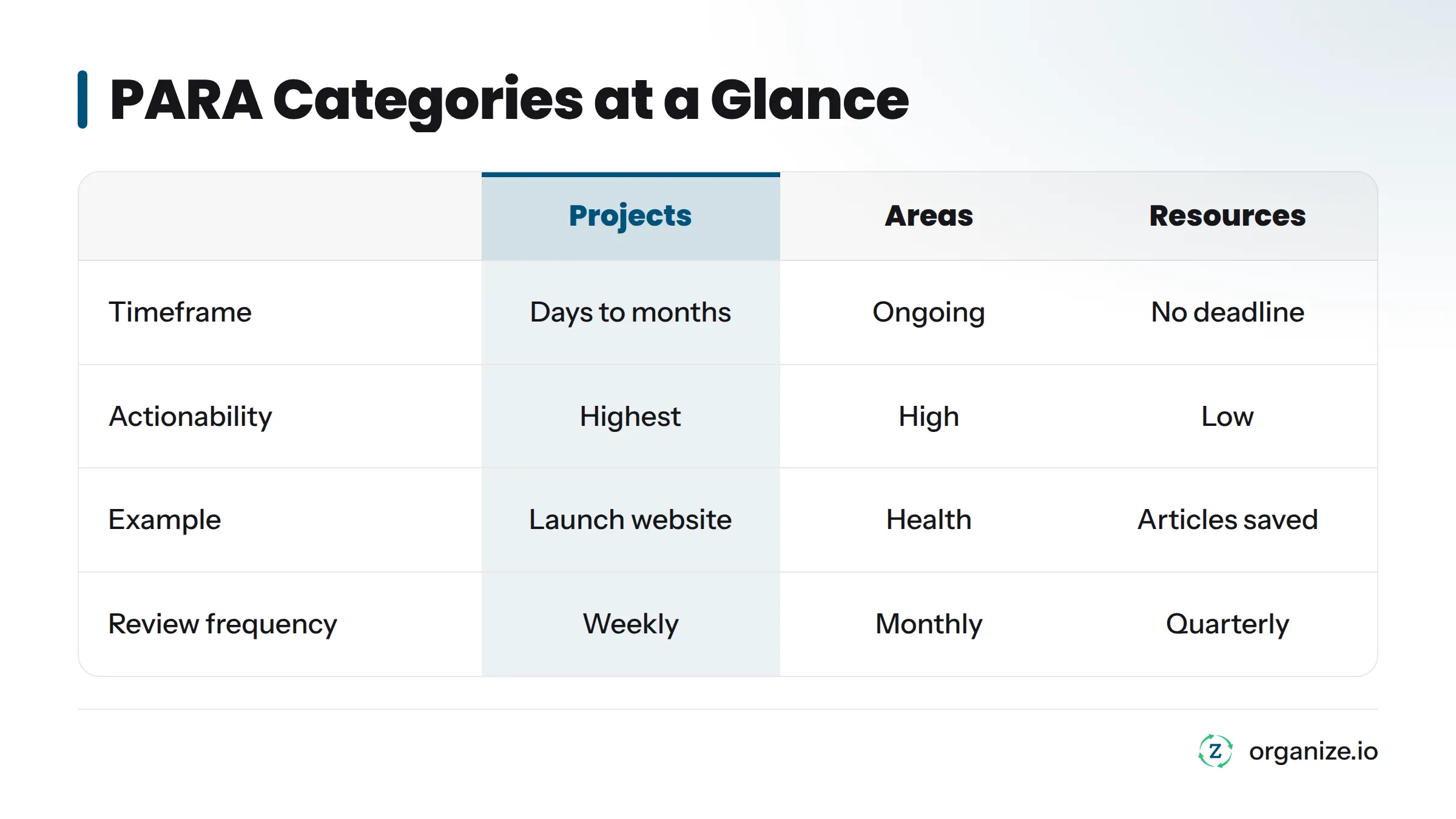
Each PARA category sits at a different point on an actionability spectrum. Projects demand action right now. Archives demand nothing at all until you need them again. Areas and Resources sit in between.
Projects
A Project is a short-term effort with a specific goal and a clear finish line. If it has an end date and a defined outcome, it belongs here.
Once the website launches or the move is done, the project finishes. It either moves to Archives or spins off into an ongoing Area.
Areas
An Area is a sphere of ongoing responsibility with no finish line. It does not get “completed.” It just needs to be maintained at a standard over time.
This is the category people confuse most often with Projects. A good test: can you ever check it off and call it done? If no, it is an Area. “Get healthier” never finishes. “Run a 5K on April 12” does, which makes it a Project.
Resources
A Resource is reference material you want to keep for future use, tied to a topic of interest rather than an active commitment.
Resources is the closest thing PARA has to a traditional topic folder. The difference is that it only holds material with no active claim on your time.
Archives
Archives hold anything inactive from the other three categories. Nothing goes here because it is unimportant. It goes here because it is done or dormant.
Quick memory hook: Projects you are doing now. Areas you are maintaining always. Resources you might need later. Archives you are done with for now.
Items do not sit still inside PARA. A Project that finishes either gets archived (the website launched, done) or spins off into an ongoing Area (you finished “launch the website” but now you have an ongoing Area called “maintain the website”). An Area you are no longer responsible for gets archived. A Resource you start actively using for a specific goal can get pulled into a Project.
This movement is the entire point. PARA is not a filing cabinet where things sit forever. It is meant to be re-sorted constantly as your actual commitments change.
| Category | Actionability | Timeframe | Example | Review Frequency |
|---|---|---|---|---|
| Projects | Highest, active tasks tied to a goal | Days to months, has an end date | Launch new website | Weekly |
| Areas | High, ongoing standard to maintain | Indefinite, no end date | Health, Finances | Monthly |
| Resources | Low, reference only | No deadline | Saved research, recipes | Quarterly or as needed |
| Archives | Lowest, inactive | Indefinite until revived | Completed projects, old files | Rarely, only to retrieve |
You can set up PARA in Notion, Google Drive, Apple Notes, Evernote, a plain file system, or paper folders. The structure does not depend on the tool.
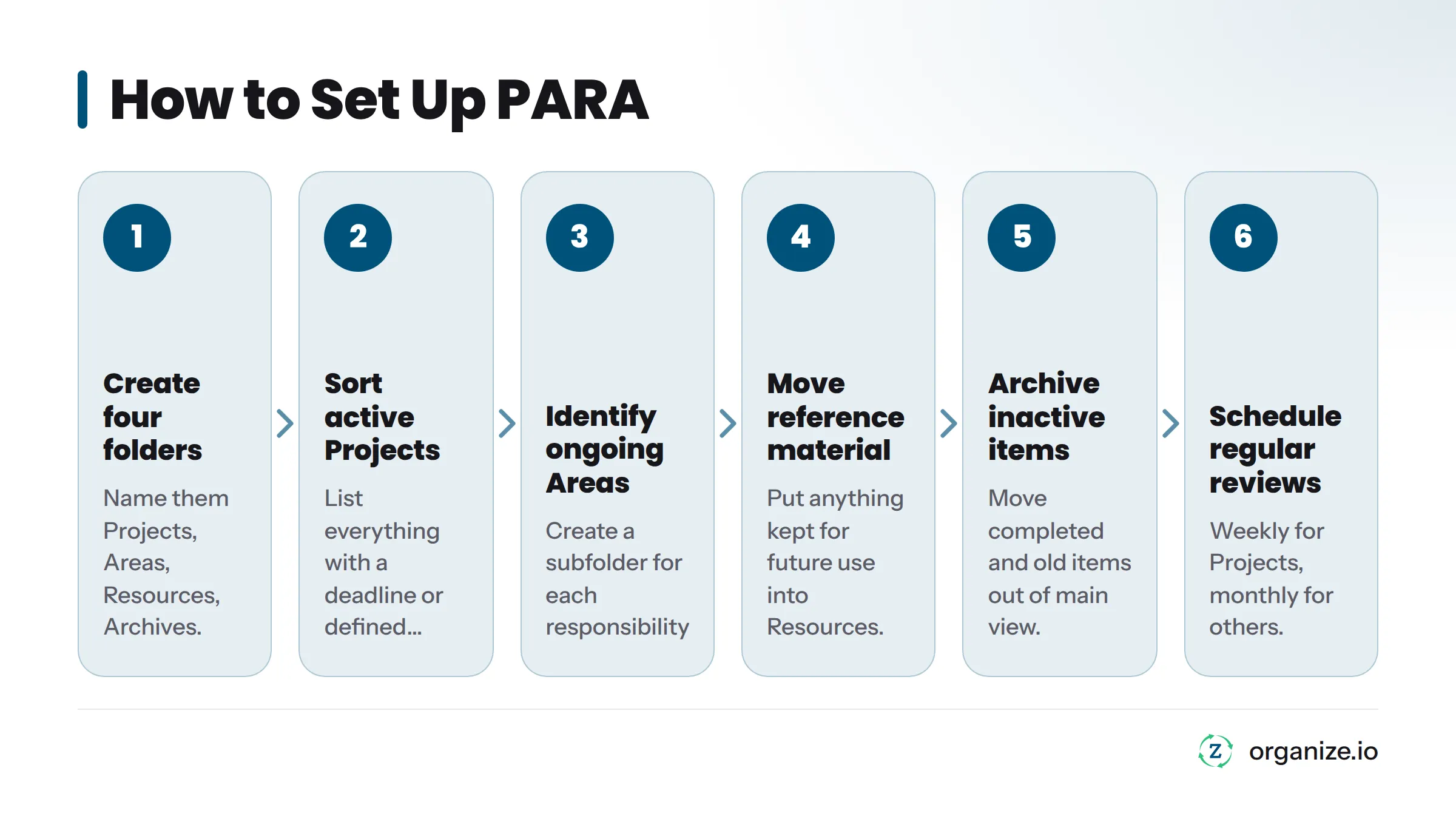
PARA Setup Checklist
If you want a deeper walkthrough of building a full digital organization system around this kind of structure, Zorga’s guide to the second brain method covers the broader knowledge management approach PARA fits inside.
Tiago Forte’s own walkthrough is a useful companion to these steps if you want to see the method explained in his words.
PARA’s Areas category - your ongoing responsibilities like health, finances, and relationships - overlaps directly with the areas of life concept used in goal setting. Both are built around the same idea: your life is made up of a handful of ongoing domains that never get “finished,” only maintained or neglected.
The difference is purpose. PARA’s Areas exist to organize your notes and files. The areas of life for goal setting framework exists to set direction and goals within those same domains. If your PARA Area is “Health,” the areas-of-life version of that same domain asks a harder question: what do you actually want your health to look like in a year, and what has to happen this month to move toward it.
PARA gives you a place to file information about your ongoing responsibilities. It does not tell you what to aim for inside them.
Here is the honest limitation nobody selling a PARA template will tell you. PARA is excellent at organizing information once you already know what your Projects are. It has no mechanism for deciding which Projects should exist in the first place.
Think about what PARA actually does. It takes your existing commitments, Projects and Areas, and gives them a clean home based on actionability. It says nothing about whether “Launch the new website” is even the right project to be spending your time on this quarter, versus some other project you have not started yet. PARA organizes. It does not prioritize, and it does not set direction.
This is not a criticism of Tiago Forte’s work. Building a Second Brain is explicitly a knowledge management system, and it does what it says it does well. The gap shows up when people expect PARA to also function as a goal-setting system or a task scheduler. It was never built for that. A well-organized set of folders full of projects you never chose on purpose is still a well-organized mess.
Before PARA’s Projects category, you need something that decides what belongs in Projects at all, built from a clear set of goals, not from whatever feels urgent this week. If you have ever felt productive on paper but directionless in practice, that feeling usually traces back to this exact gap.
PARA is a strong system for digital note and file organization. It is not a full productivity system, a task scheduler, or a goal-setting framework, and it was never marketed as one by its creator.
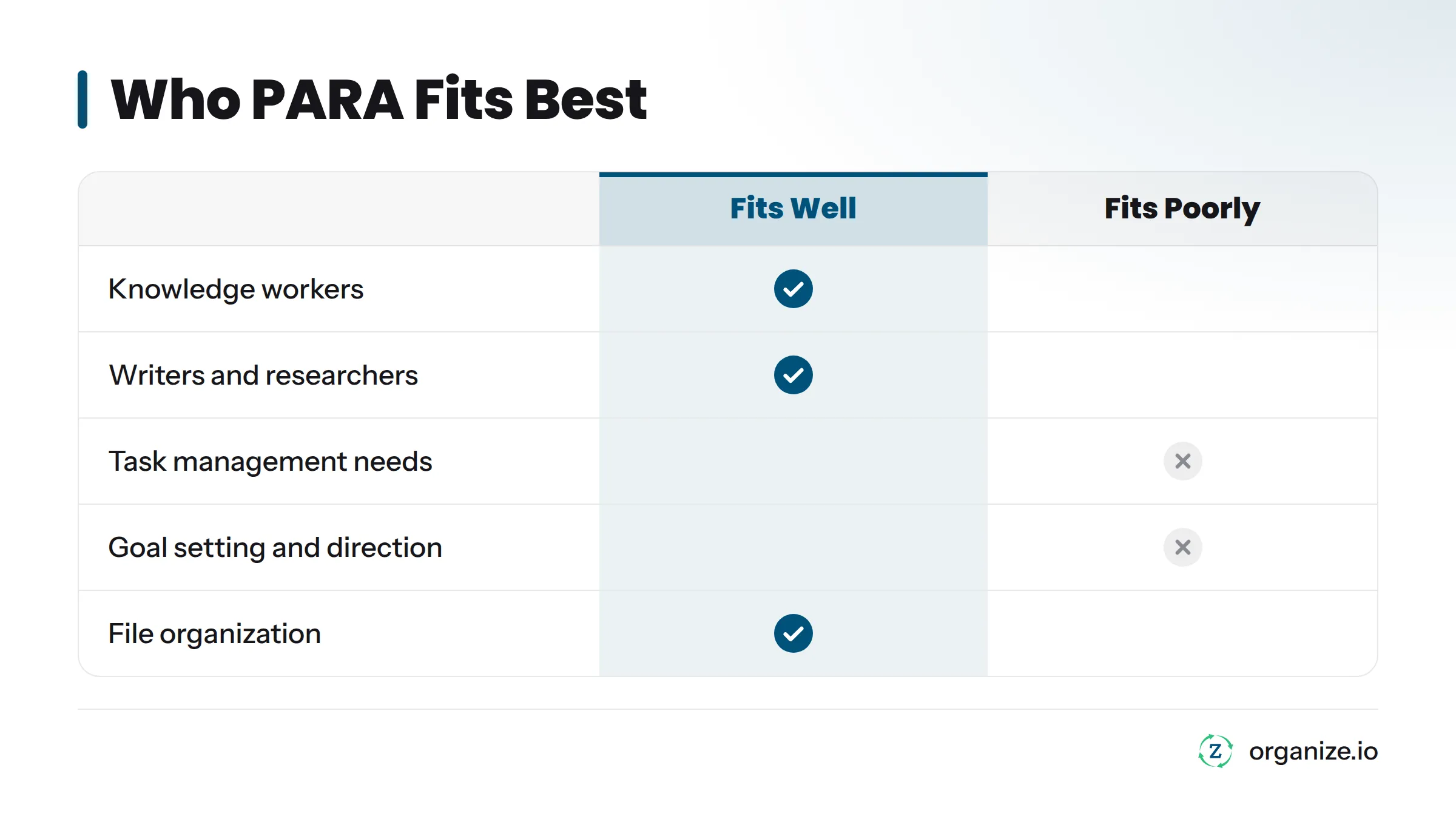
PARA fits well for:
PARA fits poorly for:
If you fall into that second or third group, the honest fix is not a better folder structure. It is a system that sets goals and direction before it asks you to organize anything, which is a different tool solving a different problem.
GTD (Getting Things Done), developed by David Allen, is a task and workflow management method focused on capturing, clarifying, and executing individual tasks. PARA is a filing structure for notes and files, focused on where information lives rather than what to do with it moment to moment. The two are often used together rather than as substitutes.
PARA organizes. GTD executes. You can run both at the same time.
What does PARA stand for?
PARA stands for Projects, Areas, Resources, and Archives, the four categories Tiago Forte uses to organize digital information by actionability.
What is the difference between a Project and an Area in PARA?
A Project has a specific goal and an end date, like “finish the Q1 report.” An Area is an ongoing responsibility with no finish line, like “finances” or “health.” If you can complete it and check it off, it is a Project. If it continues indefinitely, it is an Area.
Is PARA better than folders by topic?
PARA solves a different problem. Topic-based folders group information by subject and tend to grow endlessly. PARA groups information by actionability, so completed and inactive material naturally moves out of your active view and into Archives.
Can I use PARA without Notion?
Yes. PARA works in any tool that supports folders or tags, including Google Drive, Apple Notes, Evernote, Microsoft OneNote, plain file systems, and physical paper folders. Notion is popular for PARA because its templates are widely shared, not because the method requires it.
How often should I review my PARA system?
A common rhythm is a weekly pass on Projects, since those change fastest, and a monthly pass on Areas, Resources, and Archives. Review frequency should match how often each category actually changes for you.
What is the 3-3-3 rule for tasks, and is it related to PARA?
The 3-3-3 rule is a separate daily task-planning technique, generally described as spending three hours on your most important task, three shorter tasks, and three maintenance tasks each day. It is not part of PARA and addresses a different problem - daily task sequencing rather than information organization.
Does PARA help with task management or scheduling?
Not directly. PARA organizes where information lives. It does not schedule your day or tell you which task to do next, which is why many people pair it with a separate task or calendar system.
How does PARA relate to building a second brain?
PARA is the organizing structure inside the broader second brain concept, Tiago Forte’s term for an external system that stores and retrieves your knowledge so your memory does not have to. PARA answers the “where does this go” question inside that larger system.
PARA alone will organize your files. It will not tell you which projects deserve your time or what you are actually working toward.
That second question - which goals matter, which projects get time, how your days actually move you forward - is a different problem. It requires a system that starts with direction before tasks. The Zorga System is built around that direction-first approach: your vision and goals come first, then your daily action, then your feedback. PARA handles the information layer. Direction comes from the layer above it.
Start your 7 free days at organize.io.